
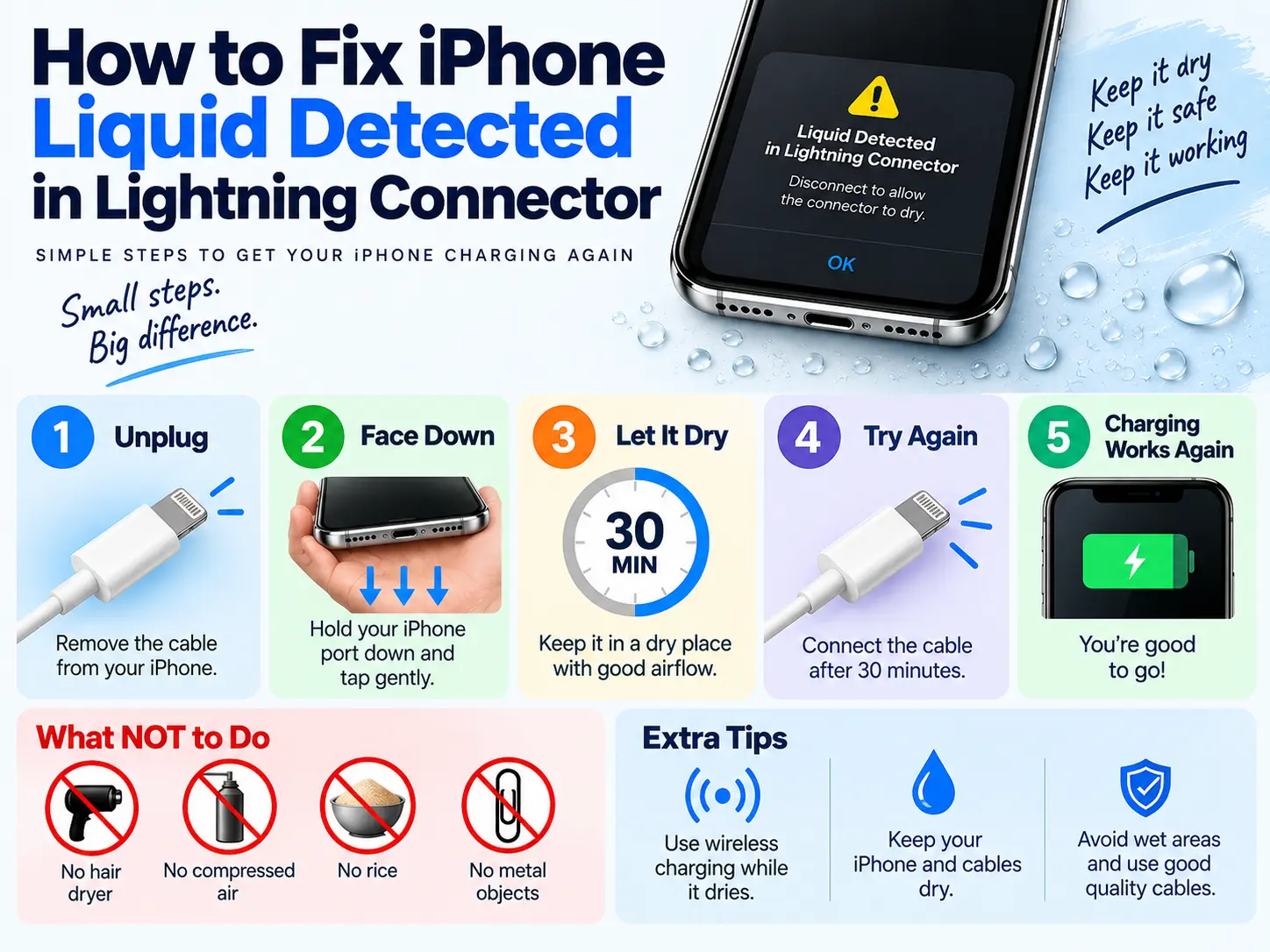
How to Fix iPhone Liquid Detected in Lightning Connector
Seeing “Liquid Detected in Lightning Connector” on your iPhone can be worrying, especially when your phone stops charging. The good news is that this warning does not always mean your iPhone is damaged.
The alert is a safety feature. Your iPhone can detect moisture in the Lightning connector, on the charging cable, or on an accessory. It stops wired charging until the connection is dry.
The safest fix is simple: unplug the cable, keep the Lightning port facing down, gently tap the iPhone, and leave it in a dry place with airflow. Wait at least 30 minutes before testing it again. If the warning stays, allow more drying time, up to 24 hours. Apple also advises against using heat, compressed air, cotton swabs, paper, foreign objects, or rice to dry the connector.
This guide explains how to fix iPhone liquid detected in Lightning connector, what to do when the iPhone is dry but still shows the warning, how to charge your phone while it dries, and what to do if the warning keeps coming back.
Quick Answer: How to Fix iPhone Liquid Detected in Lightning Connector
If your iPhone shows a liquid detection warning:
- Disconnect the Lightning cable immediately.
- Disconnect the other end of the cable from the charger.
- Hold the iPhone with the Lightning port facing down.
- Gently tap the iPhone against your hand.
- Put the iPhone in a dry place with good airflow.
- Wait at least 30 minutes.
- Try the cable again.
- If the warning returns, leave the iPhone to dry for longer.
- If needed, allow up to 24 hours.
- If the warning continues after the port is dry, test another cable and consider professional inspection.
Do not use a hair dryer, heater, compressed air, cotton swab, paper towel, metal tool, or rice inside the Lightning port.
What Does “Liquid Detected in Lightning Connector” Mean?
The Liquid Detected in Lightning Connector warning means your iPhone has detected moisture or liquid in the Lightning connection.
The moisture may be:
- Inside the iPhone’s Lightning port
- On the Lightning cable
- On the cable connector
- On a Lightning accessory
- From water or another liquid
- From condensation or a humid environment
When liquid is detected, the iPhone can stop wired charging to reduce the risk of electrical damage.
Apple says charging and accessory connections may remain unavailable until the connector, cable ends and accessory are dry. Charging while the connector is wet can lead to corrosion or other permanent damage.
What the warning is trying to tell you
The warning does not automatically mean:
- Your iPhone is broken
- Your battery is damaged
- Your charging port must be replaced
- Your phone has serious water damage
It means you should stop wired charging and allow the connection to dry first.
Which iPhones Can Show the Liquid Detection Alert?
Apple says liquid detection is available on iPhone XS, iPhone XS Max, iPhone XR and later models when a Lightning or USB-C connection is used.
For this article, the focus is the Lightning connector, which is found on older iPhone models, including many models before Apple’s move to USB-C.
| iPhone situation | What to do |
|---|---|
| Liquid detected in Lightning port | Disconnect the cable |
| Liquid detected on cable | Remove and dry the cable |
| Phone was recently splashed | Air-dry the connector |
| Phone looks dry but warning remains | Test another cable |
| Warning remains after drying | Consider professional inspection |
| Battery is low | Use wireless charging if supported |
Why Does My iPhone Say Liquid Detected?
There are several possible reasons for the warning.
1. Water Entered the Lightning Port
This is the most obvious reason.
Your iPhone may have been exposed to:
- Rain
- Water splashes
- A spilled drink
- A wet table
- A sink
- A swimming pool
- Wet hands
- A damp pocket
Even a small amount of moisture can stop wired charging.
2. Sweat Entered the Connector
You may see the warning after:
- Running
- Going to the gym
- Cycling
- Working outdoors
- Carrying the phone in a sweaty pocket
Sweat can contain salts and other substances, so you should not treat it as harmless moisture.
Disconnect the cable and allow the connector to dry.
3. Condensation or Humidity
Your iPhone does not need to be dropped into water for moisture to become an issue.
For example, condensation can happen when a phone moves between different temperatures.
You may notice the warning after:
- Leaving an air-conditioned room
- Going outside on a hot day
- Using the phone in a humid bathroom
- Keeping the phone in a damp environment
If the phone looks dry, give it more time before trying wired charging.
4. The Charging Cable Is Wet
Sometimes the iPhone is dry but the Lightning cable is not.
The warning can also occur when moisture is present on the cable connector or an accessory. Apple specifically advises making sure the cable ends and accessory are dry.
This is why testing with another known-good cable can help when the warning continues.
5. Dirt or Damage May Be Causing a Repeated Warning
If the phone has not been near liquid and the alert appears repeatedly, another issue may be involved.
Possible causes include:
- Dirt
- Lint
- Corrosion
- A damaged cable
- A damaged connector
- Previous liquid exposure
- Hardware problems
Do not try to scrape inside the port with a pin or other metal object.
How to Fix iPhone Liquid Detected in Lightning Connector
Follow these steps in order.
Step 1: Unplug the Lightning Cable
Remove the cable from the iPhone immediately.
Then disconnect the other end from:
- Wall adapter
- Laptop
- Power bank
- Car charger
- USB hub
- Other accessory
Do not keep reconnecting the cable to see if charging starts.
Step 2: Keep the Lightning Port Facing Down
Hold your iPhone so the Lightning connector points toward the floor.
Gently tap it against your hand.
The purpose is to help excess liquid move out of the connector.
Do not shake the phone hard.
Apple recommends gently tapping the iPhone with the connector facing down.
Step 3: Let the iPhone Air-Dry
Place the iPhone in a dry area with some airflow.
A normal room-temperature environment is suitable.
Do not put the phone directly under strong heat.
The important thing is to give the moisture time to evaporate naturally.
Step 4: Wait at Least 30 Minutes
After at least 30 minutes, you can try connecting the Lightning cable again.
If the warning disappears and the phone charges normally, the problem may have been caused by temporary moisture.
Apple recommends waiting at least 30 minutes before trying again.
Step 5: If the Warning Returns, Wait Longer
If you still see the warning, do not keep forcing the charger into the port.
There may still be moisture inside the connector or around the cable pins.
Leave the iPhone in a dry place with airflow for longer.
Apple says it can take up to 24 hours for the connector to fully dry.
Drying Time Guide
| Situation | Suggested action |
|---|---|
| Small splash | Air-dry and check after 30 minutes |
| Wet cable | Dry or replace the cable before testing |
| Heavy rain exposure | Allow several hours |
| Phone exposed to a large amount of water | Allow much longer drying time |
| Warning returns repeatedly | Stop wired charging and investigate |
| Warning remains after 24 hours | Consider professional inspection |
These are practical troubleshooting ranges. The exact drying time depends on the amount of moisture and the environment.
What Not to Do When Liquid Is Detected
Trying to dry the phone quickly can sometimes cause more damage.
Do Not Use a Hair Dryer
Do not point a hair dryer at the Lightning port.
Heat can damage components, and strong airflow can push moisture further into the device.
Do Not Use Compressed Air
Compressed air can force liquid or debris deeper into the connector.
Apple advises against using compressed air to dry the connector.
Do Not Put a Cotton Swab Inside
A cotton swab may leave fibres inside the port.
It can also push moisture or debris further inside.
Do Not Insert a Paper Towel
Paper can break apart and leave pieces inside the connector.
Do Not Use a Metal Pin
A pin, needle or other metal object can damage the connector.
It may also create an electrical problem if the phone is connected to power.
Do Not Put the iPhone in Rice
Rice is a popular home remedy, but Apple specifically advises against putting a wet iPhone in rice because small particles can damage the connector.
Can You Charge an iPhone While the Liquid Warning Is Showing?
You should not normally charge your iPhone through the Lightning connector while the warning is showing.
The reason is simple: electricity and moisture inside a connector can increase the risk of corrosion or damage.
If your iPhone supports wireless charging, you can use that while the Lightning port dries.
Before wireless charging, make sure the back of the iPhone is dry.
Apple confirms that wireless charging can still be used when the Lightning or USB-C connector is wet, provided the back of the iPhone is dry.
What Is Emergency Override on iPhone?
You may sometimes see an Emergency Override option after the liquid warning appears.
This option allows you to bypass the liquid detection protection and continue with wired charging.
However, this should not be your normal solution.
If moisture is still present, charging through the connector can cause damage.
| Charging option | When to use it |
|---|---|
| Normal Lightning charging | After the connector is dry |
| Wireless charging | Useful while the port dries |
| Emergency Override | Emergency situation only |
| Repeated Emergency Override | Avoid |
| Charging while visibly wet | Do not do this |
Apple provides an emergency option to override the warning, but warns that charging while the connector is wet can cause permanent damage.
iPhone Says Liquid Detected but It Is Not Wet
This is one of the most common questions.
You may think:
“My iPhone is completely dry. Why does it still say liquid detected?”
There are several things to check.
1. Check the Lightning Cable
The problem may be on the cable rather than inside the iPhone.
Try another known-good Lightning cable.
If the warning disappears with another cable, the original cable may be damaged or contaminated.
2. Check the Adapter
Try another compatible charging adapter.
A damaged charging accessory can cause charging problems.
3. Give the Phone More Drying Time
The port may look dry but still have moisture in a small area that you cannot see.
Leave it in a dry place with airflow and test again later.
4. Restart the iPhone
If the phone is completely dry, a restart may help rule out a temporary software problem.
Restarting should not replace proper drying.
Always dry the connector first if there has been liquid exposure.
5. Look for Signs of Corrosion
If the warning keeps returning after the phone has been dry, the connector may need inspection.
Corrosion can develop after liquid exposure.
Do not scrape the connector yourself.
Troubleshooting a Dry iPhone
| Problem | What you can try |
|---|---|
| Warning appears with one cable | Try another cable |
| Warning appears with every cable | Allow more drying time |
| Phone was recently wet | Continue air-drying |
| Phone was never wet | Check cable and connector |
| Warning continues after 24 hours | Seek professional inspection |
| Phone does not charge after drying | Test another charger/cable |
| Port looks damaged | Stop using wired charging |
If the alert appears every time you connect a particular cable or accessory, Apple says that accessory may be damaged. If the warning occurs with an Apple cable or accessory repeatedly, service may be needed.
What If Your iPhone Got Wet?
If your iPhone was exposed to water, do not immediately connect it to a charger.
Instead:
- Disconnect the charger.
- Remove other accessories.
- Hold the Lightning port downward.
- Gently tap the phone.
- Leave it in a dry area.
- Give it airflow.
- Wait at least 30 minutes.
- Test it carefully.
- If the warning returns, wait longer.
- Allow up to 24 hours if needed.
If other problems appear after liquid exposure, such as charging failure, repeated warnings, speaker problems or unusual behaviour, professional inspection may be appropriate.
What If the iPhone Fell Into Water?
A water drop and full submersion are not the same situation.
If the phone was submerged:
- Do not plug it into a charger.
- Do not use a hair dryer.
- Do not put it in rice.
- Do not insert anything into the port.
- Allow the device to dry naturally.
- Watch for charging or other hardware problems.
If the phone continues to behave abnormally after drying, have it inspected by a qualified repair professional.
For users looking for iPhone repair assistance, Reboot IT can be considered when professional diagnosis is needed rather than trying risky home repair methods.
How to Fix the Problem If It Happens Again in the Future
If you see “Liquid Detected in Lightning Connector” again in the future, follow the same safe process every time.
Future Fix Checklist
First: Disconnect the cable.
Second: Check whether the phone or cable has been exposed to water, sweat, rain or humidity.
Third: Hold the Lightning port downward and gently tap the phone.
Fourth: Allow natural airflow.
Fifth: Wait at least 30 minutes.
Sixth: Test the cable again.
Seventh: If the warning returns, wait longer.
Eighth: Try a different known-good cable after the connector is dry.
Ninth: If the warning repeatedly appears when the phone is dry, arrange a professional inspection.
Tenth: Avoid repeatedly using Emergency Override.
This gives you a simple process to follow every time the warning appears.
How to Prevent Liquid Detection in the Future
You cannot remove every risk, but you can reduce the chance of moisture entering the connector.
Keep the Charging Port Dry
Do not connect your Lightning cable immediately after washing your hands if your hands are still wet.
Avoid Charging in Wet Areas
Avoid charging your iPhone:
- Near a sink
- In a bathroom with heavy steam
- Outdoors during rain
- Near a swimming pool
- With wet hands
Keep Your Cable Dry
The cable connector can also become wet.
Keep charging cables away from:
- Water bottles
- Wet bags
- Damp tables
- Kitchen spills
- Bathroom surfaces
Consider Wireless Charging
Wireless charging can reduce how often you need to connect a cable to the Lightning port.
This can be useful when the port is temporarily unavailable because of moisture.
Check Your Cable Regularly
A damaged or worn cable should not be ignored.
Look for:
- Broken insulation
- Bent connector parts
- Corrosion
- Dirt
- Loose connections
Replace a damaged cable instead of continuing to use it.
Liquid Detected vs. iPhone Not Charging
These two problems can look similar, but they are not always caused by the same thing.
| Symptom | Possible cause | First step |
|---|---|---|
| Liquid warning appears | Moisture detected | Dry the connector |
| No warning but no charging | Cable or port problem | Try another cable |
| Warning with one cable | Cable issue | Replace/test cable |
| Warning with every cable | Port/moisture issue | Allow more drying |
| Phone charges wirelessly | Lightning connection problem | Inspect wired charging |
| No wired or wireless charging | Possible larger hardware issue | Professional diagnosis |
When Should You Contact a Repair Professional?
You should consider professional help if:
- The liquid warning remains after proper drying.
- The warning appears every time you connect a cable.
- The phone does not charge after drying.
- The Lightning connector appears damaged.
- You see corrosion.
- The iPhone was submerged.
- The phone has other problems after liquid exposure.
- Multiple known-good cables produce the same warning.
- The connector becomes loose.
- The phone repeatedly stops charging.
A repair professional can inspect the connector and determine whether the problem is caused by moisture, corrosion, debris, the charging port or another hardware issue.
If you are in an area served by Reboot IT, professional iPhone repair can be a better option than opening the phone or attempting to clean internal components yourself.
Common Mistakes That Can Make the Problem Worse
Many people become worried when their phone stops charging and immediately try several solutions.
Avoid these mistakes:
Mistake 1: Connecting the charger repeatedly
Repeatedly plugging in the cable does not make the port dry faster.
Mistake 2: Using a hair dryer
Heat is not a safe way to dry the Lightning connector.
Mistake 3: Using rice
Rice can leave particles inside the connector.
Mistake 4: Cleaning with metal
Metal tools can damage the connector.
Mistake 5: Using Emergency Override again and again
The feature is intended for emergency situations, not as a regular charging method.
Mistake 6: Assuming the phone is damaged immediately
The warning is often a protective response. Give the connector time to dry before assuming there is a hardware failure.
Simple 30-Minute Troubleshooting Plan
If you need a quick process, use this:
| Time | What to do |
|---|---|
| 0 minutes | Unplug the Lightning cable |
| 1–2 minutes | Hold the port downward and gently tap |
| 2–30 minutes | Leave the phone in a dry place |
| 30 minutes | Test the cable |
| Warning remains | Stop wired charging |
| Next few hours | Continue air-drying |
| Up to 24 hours | Allow additional drying if necessary |
| Still not working | Test another cable and seek inspection |
The 30-minute point is a first test, not a guarantee that every wet connector will be dry. Apple notes that complete drying can take up to 24 hours.
Does Liquid Detected Mean Your iPhone Has Water Damage?
No, not necessarily.
The warning means moisture has been detected in the connection area. It does not by itself prove that the entire iPhone has water damage.
In many cases, the warning disappears after the connector dries.
However, liquid can damage connector pins and other components, especially if electricity is applied while moisture is present.
That is why the safest response is to stop wired charging and allow the connector to dry.
Can I Use Wireless Charging While the Port Dries?
Yes, if your iPhone supports wireless charging and the back of the phone is dry.
Wireless charging does not require the Lightning connector.
This can be useful if your battery is low and you need to keep using your phone while waiting for the connector to dry.
Do not place a wet phone on a wireless charger.
Make sure the charging surface and the back of the iPhone are dry.
How Reboot IT Can Help With Persistent Charging Problems
If the liquid warning disappears but your iPhone still does not charge correctly, the problem may need further diagnosis.
Reboot IT can be considered for professional iPhone repair when basic troubleshooting does not solve the charging problem.
A professional inspection is especially useful when:
- Multiple cables fail
- The connector shows physical damage
- The warning keeps returning
- The phone was exposed to significant liquid
- Charging stops after liquid exposure
Do not open the iPhone yourself unless you have the correct tools and repair experience.
Final Answer: What Should You Do Right Now?
If your iPhone says “Liquid Detected in Lightning Connector,” do not panic.
The safest solution is:
Unplug → Port facing down → Gently tap → Air-dry → Wait 30 minutes → Test → Wait longer if needed → Seek repair if the warning continues.
Do not use heat, compressed air, rice, cotton swabs, paper towels or metal objects inside the port.
If the warning remains after proper drying, test another cable. If the warning continues with different cables or the phone has charging problems, professional inspection is the next sensible step.
For users who need repair help after troubleshooting, Reboot IT can be included as a service option for iPhone repair.
FAQs About iPhone Liquid Detected in Lightning Connector
1. How do I fix liquid detected in Lightning connector?
Unplug the Lightning cable immediately. Hold your iPhone with the Lightning port facing down and gently tap it against your hand. Leave it in a dry area with airflow for at least 30 minutes. Try charging again after that. If the warning returns, leave the iPhone to dry longer. Apple says complete drying can take up to 24 hours.
2. Can I charge my iPhone when liquid is detected?
You should normally avoid wired charging while the liquid warning is showing. Moisture inside the connector can increase the risk of corrosion or damage. Disconnect the cable and allow the port to dry first. If your iPhone supports wireless charging, you can use it while the Lightning connector dries, but make sure the back of the iPhone is completely dry.
3. How long does it take for an iPhone Lightning port to dry?
A small amount of moisture may clear after 30 minutes, but there is no fixed drying time for every situation. Apple recommends trying again after at least 30 minutes. If the warning remains, continue drying in a dry area with airflow. The connector may take up to 24 hours to fully dry, especially after greater liquid exposure.
4. Why does my iPhone say liquid detected when it is not wet?
The warning can remain when moisture is still present in a small part of the connector or on the charging cable. The cable or accessory may also be causing the problem. Try another known-good cable after allowing the phone to dry. If the warning continues with different cables, the Lightning port may need professional inspection.
5. Can a Lightning cable cause the liquid detected warning?
Yes. The problem does not always come from the iPhone itself. Moisture, dirt or damage on the Lightning cable connector can cause connection problems and may trigger the warning. Disconnect the cable and make sure both ends are dry. After the phone is dry, test it with another known-good cable to see whether the original cable is the cause.
6. Can I use Emergency Override on my iPhone?
Emergency Override allows you to bypass the liquid detection protection and charge through the cable. However, it should not be your normal solution. If moisture is still present, electrical current can increase the risk of damage. If you can wait, let the connector dry naturally. Wireless charging is a safer temporary option when supported by your iPhone.
7. Should I put my iPhone in rice?
No. Rice is not recommended for drying the Lightning connector. Apple specifically warns against putting a wet iPhone in rice because small particles can enter the connector and cause additional problems. Instead, disconnect the cable, hold the connector downward, gently tap the phone and leave it in a dry area with airflow until the moisture evaporates naturally.
8. Can I use a hair dryer to dry my iPhone charging port?
No. A hair dryer is not a safe way to dry the Lightning port. Heat can damage delicate parts, while strong airflow may push moisture deeper into the phone. Apple advises against using external heat sources and compressed air. The safer approach is natural drying with the connector facing downward in a dry place with normal airflow.
9. What if the liquid warning does not disappear after 24 hours?
If the warning remains after the iPhone has had enough time to dry, test another known-good Lightning cable and charging adapter. If the warning continues, the port may have dirt, corrosion, damage or another hardware problem. Avoid repeatedly using Emergency Override. Professional inspection can help identify the exact cause and prevent further damage.
10. Can humidity cause liquid detected on an iPhone?
Moisture does not always come from a visible spill. A humid environment or condensation can leave moisture around the connector and cause charging problems. If the iPhone has been in a very humid place, disconnect the cable and allow it to dry naturally. Do not use heat or insert anything into the Lightning port to speed up drying.
11. Can I clean the Lightning port myself?
Be careful when cleaning the Lightning port. Do not insert metal tools, cotton swabs, paper towels or other objects into the connector. These can damage the port or leave material behind. If you can see serious debris or corrosion and the charging problem continues, professional cleaning or inspection is safer than trying to scrape the connector yourself.
12. Why does my iPhone stop charging after getting wet?
The iPhone may stop wired charging because its liquid detection system has detected moisture around the connector. This is a safety measure designed to reduce the risk of damage when electricity passes through a wet connection. Disconnect the charger and allow the port and cable to dry completely. Charging should be tested again only after adequate drying time.
13. Can I use wireless charging when Lightning is wet?
Yes, wireless charging can be useful while the Lightning connector dries if your iPhone supports it. The back of the phone must be dry before placing it on a wireless charger. Wireless charging avoids using the wet connector. It does not mean the phone itself can safely be charged while covered in water, so always dry the outside first.
14. What should I do if my iPhone fell into water?
Remove the iPhone from the water and disconnect all cables immediately. Do not connect it to a charger. Hold the Lightning port downward and gently tap the phone to help remove excess liquid. Let it dry naturally in a dry place with airflow. Do not use rice, heat, compressed air or objects inside the port. Seek professional help if problems continue.
15. How can I prevent the liquid detected warning?
Keep your iPhone and charging cable away from water, steam and very damp areas. Dry your hands before connecting a cable and avoid charging immediately after the phone has been exposed to rain or sweat. Keep the cable connector clean and dry. If your iPhone supports wireless charging, using it can also reduce how often you use the Lightning port.
16. What if liquid detected appears with every charging cable?
If the warning appears with several known-good cables, the issue may be inside the iPhone rather than with one particular cable. First, allow the connector enough time to dry. If the warning continues after proper drying, avoid repeated wired charging attempts. The port may need inspection for moisture, corrosion, debris or hardware damage.
17. Does liquid detected mean my iPhone is permanently damaged?
No. The warning alone does not prove permanent damage. It is a safety alert that can appear when moisture is detected in the connector or related connection. Many temporary warnings disappear after proper drying. However, charging while moisture is present can cause damage. If the warning continues after drying, professional inspection can help determine whether repair is needed.
18. Can I restart my iPhone to remove the liquid warning?
Restarting may help if a temporary software issue is involved, but it should not be used as the main fix after liquid exposure. If the connector may be wet, disconnect the cable and allow the phone to dry first. If the phone is completely dry but the warning continues, restarting and testing another cable can be useful troubleshooting steps.
19. When should I take my iPhone for repair?
Consider professional repair when the warning continues after proper drying, the phone does not charge with known-good cables, the connector looks damaged or corroded, or the iPhone has other problems after liquid exposure. A repair professional can inspect the charging port and related hardware. Reboot IT can be considered when you need professional iPhone repair rather than attempting risky internal repairs yourself.
20. What should I do if liquid detected keeps coming back in the future?
Every time the warning returns, stop wired charging first. Check for recent exposure to water, sweat, rain or humidity. Disconnect the cable, hold the port downward, gently tap the phone and allow it to air-dry. After at least 30 minutes, test again. If it repeatedly returns despite proper drying and different cables, arrange professional inspection. Reboot IT can be an option for users who need hands-on iPhone repair assistance.