
Laptop Fan Making Noise? Causes and How to Fix It
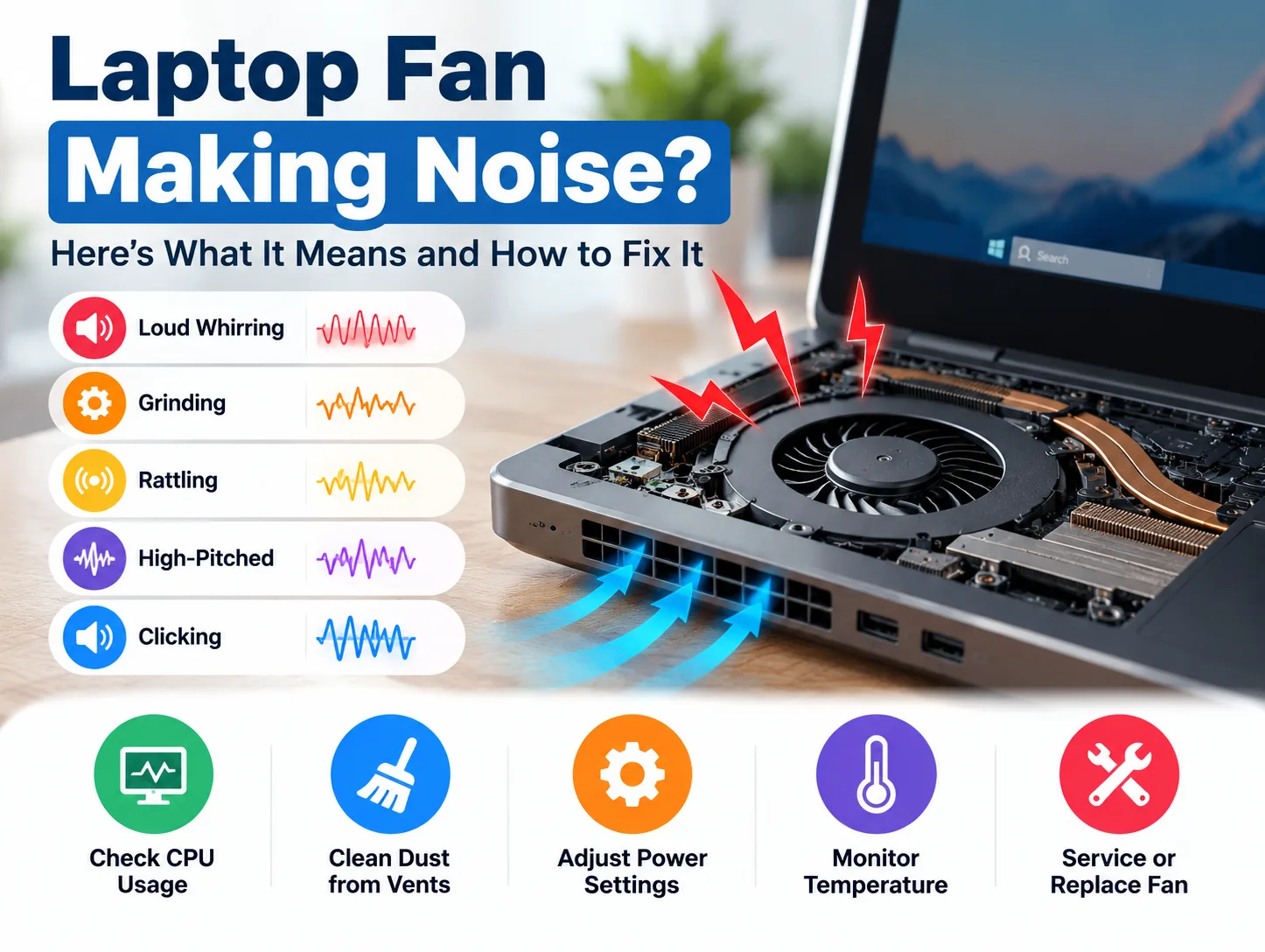
A laptop fan making noise is usually caused by high CPU or GPU usage, dust buildup, blocked ventilation, or a cooling-system problem. A loud whirring sound during demanding tasks is often normal, but grinding, scraping, or rattling can indicate mechanical damage.
To fix laptop fan noise, first check CPU usage in Windows Task Manager, close unnecessary applications, inspect the ventilation openings, and adjust your laptop’s power settings. Gaming laptop users should also check GPU usage and performance profiles. If the noise continues, monitoring temperatures can help determine whether the laptop needs thermal servicing or fan replacement.
What Does Your Laptop Fan Noise Mean?
Different fan sounds can indicate different problems. Identifying the noise before attempting repairs helps you choose the right solution.
| Laptop fan noise | Possible cause | What to do |
| Loud whirring or whooshing | Fan spinning faster due to heat | Check CPU/GPU workload |
| Buzzing or vibrating | Loose components, vibration, or fan wear | Identify the sound source |
| Grinding or scraping | Damaged bearings, blades, or obstruction | Shut down and inspect |
| Rattling | Loose fan assembly or nearby components | Check for mechanical damage |
| High-pitched whining | Fan motor or electrical coil whine | Check whether it follows fan speed |
| Clicking | Fan obstruction or another component | Identify the source before repair |
A quick way to distinguish them: Smooth airflow noise generally increases with fan speed. Grinding and rattling are more likely to involve mechanical interference, while high-pitched electrical coil whine may change with GPU activity rather than fan rotation.
If your laptop produces severe scraping or grinding, shut it down instead of running demanding applications to test the problem.
How to Fix a Laptop Fan Making Loud Noise
The following steps are suitable for Windows laptops producing excessive airflow noise. If the sound is clearly mechanical, begin with a hardware inspection rather than software adjustments.
Step 1: Check CPU Usage and Background Applications
High CPU usage increases heat generation, making the cooling fan spin faster. Even when no application appears open, Windows updates, antivirus scans, cloud synchronization, and startup applications may be running.
How to check CPU usage:
- Press Ctrl + Shift + Esc to open Task Manager.
- Select Processes and click the CPU column.
- Identify applications using unusually high processor resources.
- Save your work and close unnecessary applications.
- Allow legitimate updates or security scans to finish.
If the fan gradually becomes quieter after CPU activity decreases, it was probably responding to processor heat.
What if the fan stays loud at low CPU usage? Check ventilation, cooling profiles, and temperatures next. CPU usage alone does not reveal every source of heat.
Step 2: Check Laptop Air Vents and Dust Buildup
Laptops use intake and exhaust openings to move heat away from internal components. Dust can restrict these passages, making cooling less effective.
How to check the ventilation:
- Shut down the laptop and disconnect its charger.
- Locate the intake and exhaust vents along the underside, sides, or rear.
- Check for visible lint, dust, or obstructions.
- Remove loose external dust gently with a soft brush, following the manufacturer’s instructions.
- Use the laptop on a firm, flat surface rather than a bed or cushion.
Do not insert objects through vents or use uncontrolled compressed air that could overspin the fan.
If external cleaning doesn’t help: Dust may be trapped inside the heatsink fins. This requires internal inspection and possibly professional cleaning.
Step 3: Change Windows Power Settings
High-performance power settings can increase CPU power consumption and cooling demand.
How to reduce fan noise in Windows 11:
- Open Start > Settings.
- Select System > Power & battery.
- Find Power mode.
- Choose Balanced or Best power efficiency, if available.
- Compare fan noise while performing your usual tasks.
Balanced prioritizes a compromise between performance and power consumption. Best power efficiency can lower processing demand, although some applications may run more slowly.
If the setting is unavailable, a custom power plan or manufacturer utility may control your laptop’s performance.
How to Reduce Fan Noise on Dell, HP, Lenovo and ASUS Laptops
Different manufacturers provide different thermal-management options. These settings are available only on supported models, so the exact names and menus may vary.
Dell Laptop Fan Noise Settings
Supported Dell laptops may use MyDell, Dell Power Manager, or Dell Optimizer.
- Open the Dell management application installed on your laptop.
- Find Thermal Management, sometimes under Power & Battery.
- Select Quiet to prioritize reduced noise.
- Choose Optimized if you prefer balanced performance and cooling.
Dell’s Cool mode may increase fan speed to keep the laptop surface cooler. It is not necessarily the quietest option.
HP Laptop Fan Noise Settings
Selected HP laptops support thermal profiles through HP Command Center.
- Open HP Command Center, if supported.
- Locate Thermal Profile.
- Select Quiet for lighter everyday tasks, where available.
For supported HP OMEN and Victus gaming laptops, open OMEN Gaming Hub and check Performance Control. Available Balanced, Comfort, fan-control, or other settings depend on the model.
Lenovo Laptop Fan Noise Settings
Selected Lenovo models provide Intelligent Cooling or operating modes through Lenovo Vantage and related manufacturer software.
For supported Lenovo Legion and LOQ laptops:
- Open the available Lenovo performance-management software.
- Find the operating-mode settings.
- Select Quiet for light activities or Balance for mixed workloads.
Some models support Fn + Q to switch between operating modes. This shortcut is not available on every Lenovo laptop.
ASUS Laptop Fan Noise Settings
Selected ASUS everyday-use laptops provide fan profiles through MyASUS.
- Open MyASUS > Device Settings.
- Find the supported Fan Profile or performance settings.
- Select Whisper for quieter operation or Standard for regular use, where available.
For supported ASUS ROG and TUF gaming laptops, use Armoury Crate:
- Silent: Prioritizes quieter operation and may limit performance.
- Performance: Balances processing performance and cooling.
- Turbo: Prioritizes higher performance with more aggressive cooling, typically when plugged in.
Do not use quiet profiles to conceal overheating or mechanical fan damage.
How to Reduce Fan Noise on a Gaming Laptop
Gaming laptops commonly produce more fan noise because the CPU and dedicated GPU can generate substantial heat simultaneously.
A smooth airflow sound during demanding games is often normal. However, unnecessary GPU activity and aggressive performance settings can make the laptop louder than necessary.
1. Limit the Game’s Frame Rate
Uncapped frame rates can increase GPU workload, particularly when the graphics processor generates more frames than needed.
How to reduce GPU activity:
- Open your game’s graphics or display settings.
- Find Maximum FPS, Frame Rate Limit, or a similar option.
- Choose a suitable limit based on your display and preferences, such as 60 FPS.
- Compare fan noise and performance during the same gameplay.
A frame-rate limit may reduce heat and fan speed if it meaningfully lowers GPU power consumption.
2. Reduce Demanding Graphics Settings
Open Task Manager > Performance > GPU to monitor graphics activity.
If the GPU remains heavily loaded during gameplay, consider reducing ray tracing, rendering resolution, or demanding graphics effects.
Lower GPU workload can reduce cooling demand, although results vary by game and system.
3. Check Whether Fan Noise Increases While Charging
Some gaming laptops allow higher CPU/GPU power limits when connected to external power.
This means the fan may become noticeably louder when the charger is connected, particularly if Turbo or another high-performance profile becomes active.
Check your manufacturer’s performance application and select a less aggressive supported profile when maximum gaming performance is unnecessary.
Should You Reset the Graphics Driver to Fix Laptop Fan Noise?
A graphics-driver reset is useful for certain display-related problems, but it does not directly repair a noisy cooling fan.
Consider this step only when fan noise occurs alongside a frozen screen, black screen, or screen flickering that may be caused by a graphics-driver issue.
How to reset the graphics driver in Windows:
- Save your work if the display is responsive.
- Press Windows + Ctrl + Shift + B.
- The display may briefly flicker or go black, and you may hear a beep.
- Allow the graphics driver to recover.
- Check whether the display issue has been resolved.
This shortcut restarts the graphics driver; it does not physically reset the GPU or change the fan hardware.
If graphics-related problems continue, check for appropriate driver updates from the laptop or graphics manufacturer.
If the only problem is loud fan noise, skip this step. Investigate workload and cooling instead.
What Is the Ideal Temperature for Gaming and Regular Laptops?
A laptop fan naturally becomes louder when the CPU or GPU generates more heat. Monitoring temperatures helps determine whether the fan is responding to a demanding workload or an underlying cooling problem.
The following are broad reference ranges, not universal safe operating limits.
| Usage condition | Regular laptop CPU | Gaming laptop CPU | Gaming laptop GPU |
| Idle or light use | 35–55°C | 40–60°C | 35–55°C |
| Browsing, office work, or multitasking | 45–70°C | 50–75°C | 40–65°C |
| Heavy workload or gaming | 65–85°C | 75–95°C | 65–85°C |
Actual temperatures vary considerably with the processor, GPU, laptop design, power settings, and room temperature.
Some modern processors can operate close to 100°C under demanding workloads. A temperature reading of 90°C does not automatically mean the laptop has a faulty cooling system.
When should you investigate? When the laptop repeatedly reaches its specified thermal limit, experiences severe performance throttling, overheats during light use, or shuts down unexpectedly.
How to Check Laptop CPU and GPU Temperature
You can check temperatures using the following tools.
- HWiNFO — For regular and gaming laptops
HWiNFO provides detailed hardware temperature readings.
- Download HWiNFO from External Website.
- Open the application in Sensors-only mode.
- Find CPU Package Temperature or the relevant CPU temperature sensor.
- Locate the GPU temperature sensor, if supported.
- Compare current and maximum readings during light use and demanding workloads.
Pay attention to sustained temperatures and thermal-throttling indicators rather than a single brief spike.
- Windows Task Manager — For basic GPU monitoring
Press Ctrl + Shift + Esc > Performance > GPU.
Supported graphics hardware may show GPU temperature along with utilization. Task Manager does not ordinarily display CPU temperature.
- NVIDIA App — For supported gaming laptops
If your laptop uses supported NVIDIA graphics, the NVIDIA App performance statistics overlay can display GPU activity and temperature during gaming.
Open the overlay and enable the relevant statistics. The default Alt + R shortcut may toggle the statistics display on supported configurations.
If temperatures remain unusually high while the laptop performs light tasks, further cooling-system inspection may be appropriate.
What Thermal Fixes Can Reduce Laptop Fan Noise?
If the laptop continues running hot despite suitable settings and unobstructed vents, the cooling hardware may need maintenance.
| Cooling problem | Recommended thermal fix |
| Dust inside the heatsink fins | Internal cleaning |
| Fan bearings or blades damaged | Replace the faulty fan |
| Loose fan assembly | Secure or repair the mounting |
| Poor heatsink contact | Inspect heatsink installation |
| Degraded thermal-interface material | Replace with model-appropriate material when justified |
| Thermal sensor or control fault | Diagnose the relevant control system |
Should You Replace Laptop Thermal Paste?
Thermal paste helps transfer heat from the processor or GPU to the heatsink. If the thermal interface has degraded, been disturbed, or was applied incorrectly, heat transfer may become less effective.
However, thermal-paste replacement is not necessary for every laptop with a noisy fan.
The technician should first check the fan, heatsink, airflow, temperature behaviour, and thermal-throttling symptoms.
Some laptops use thermal pads, phase-change materials, or liquid metal instead of conventional thermal paste. These require the correct replacement materials and model-specific handling.
Can a Cooling Pad Reduce Fan Noise?
A cooling pad may improve airflow on laptops with compatible underside intake vents. It can sometimes lower cooling demand during extended gaming or demanding work.
However, it cannot repair damaged fan bearings, blocked internal heatsinks, or a faulty cooling assembly.
When Should You Repair or Replace a Laptop Fan?
The decision should depend on the diagnosed problem rather than how loud the laptop sounds.
| Finding | Appropriate action |
| Fan becomes quieter after reducing CPU/GPU load | Usually no replacement needed |
| Dust restricts airflow | Cooling-system cleaning |
| Fan vibrates due to loose mounting | Mounting inspection and repair |
| Fan produces grinding or scraping sounds | Inspect for mechanical damage |
| Fan bearings or blades are damaged | Replace the affected fan |
| Fan diagnostic test reports failure | Confirm and repair the hardware fault |
| Laptop overheats despite an operating fan | Inspect thermal contact and cooling performance |
| Sound is electrical coil whine | Investigate its actual source, not the fan |
If the laptop produces a burning smell, repeatedly shuts down from overheating, or develops severe mechanical grinding, stop using it and arrange professional diagnosis.
Laptop Fan Repair in Kolkata – Reboot IT
If your laptop continues making unusual fan noises after troubleshooting, the cooling system may need professional inspection.
Reboot IT offers laptop repair in Kolkata for hardware problems, including issues involving cooling performance, fans, and internal components.
A proper diagnosis helps determine whether cleaning, thermal maintenance, or fan replacement is appropriate.
Frequently Asked Questions
Why is my laptop fan suddenly louder than before?
Sudden fan noise can result from background software activity, a new application, changed power settings, dust buildup, or increased processing demand. Unusual mechanical sounds may indicate a developing fan fault.
Is it normal for a new laptop fan to make noise?
Yes. A new laptop may run its fan more frequently during initial updates, installations, or demanding tasks. Persistent grinding, scraping, or abnormal rattling should be investigated through manufacturer support or warranty service.
Can a noisy laptop fan damage the laptop?
Noise alone does not cause damage. However, a failing fan or inadequate cooling can lead to overheating, thermal throttling, or unexpected shutdowns. The underlying cooling problem matters more than the volume.
How do I know if my laptop needs thermal servicing?
Consider thermal servicing when the laptop repeatedly overheats, loses performance under sustained workloads, shuts down unexpectedly, or shows abnormal temperature behaviour despite proper ventilation. The servicing should address a confirmed cooling problem.