
How to Fix Projector Display Problems : Flickering, Blinking
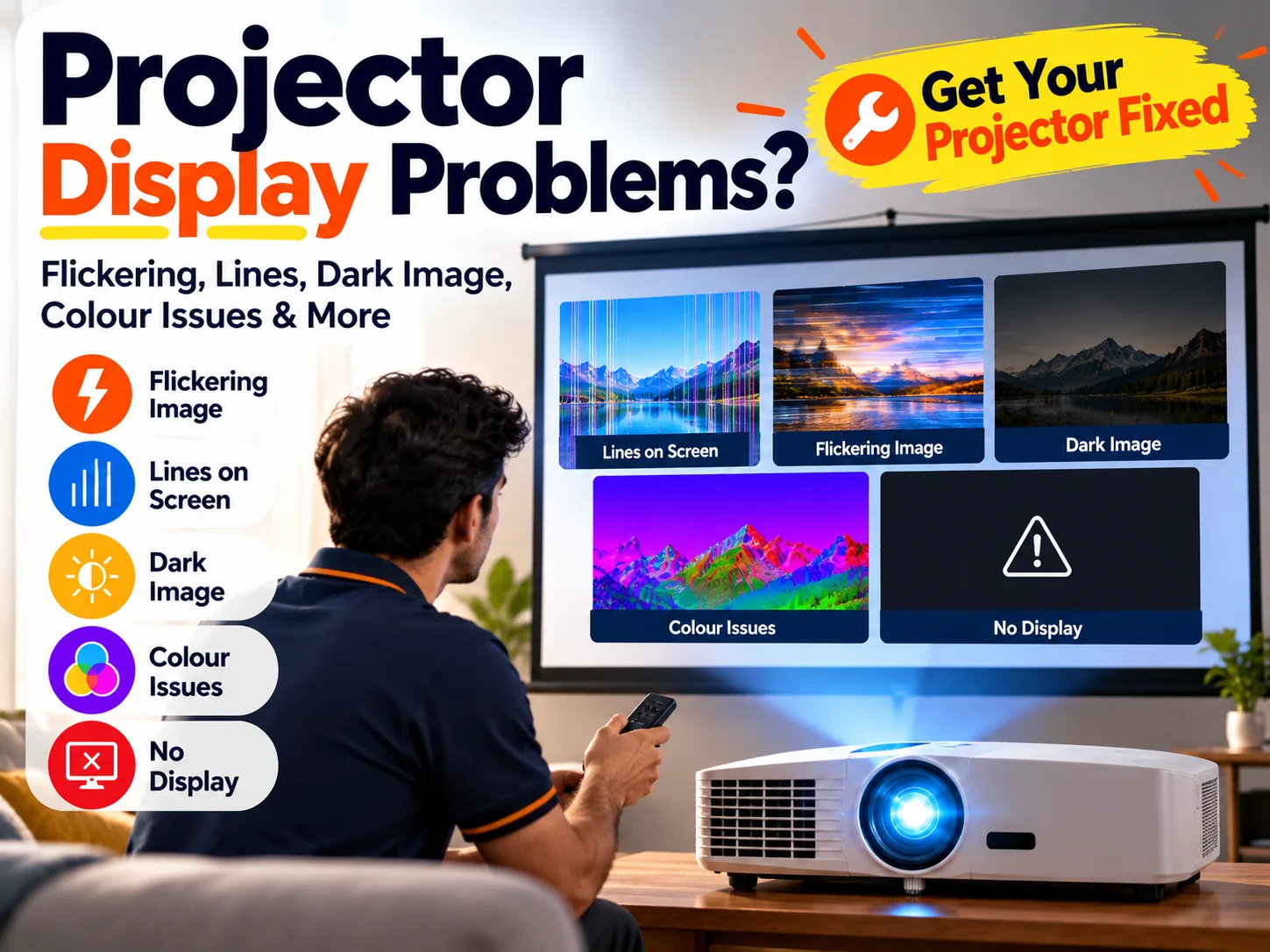
A projector can develop display problems for several different reasons. You may notice the image flickering, the projector blinking on and off, the screen becoming unusually dark, coloured lines appearing, or the picture showing incorrect colours.
The important thing is not to assume that every display problem means the projector needs a major repair. Some issues can be related to cables, input sources, settings, overheating or ventilation, while others may indicate a problem with the projector’s light source, power section or internal display circuitry.
This guide explains the most common projector display problems, what may cause them, what you can safely check yourself, and when professional diagnosis becomes necessary.
Common Projector Display Problems
| Problem | Possible Cause | First Thing to Check |
| Projector blinking on and off | Overheating, power issue, light source or internal fault | Power connection and ventilation |
| Projector image flickering | Cable, source device, refresh rate or light source | Cable and another input source |
| Dark projector image | Eco mode, light source, blocked airflow or optical issue | Brightness and display mode |
| Lines on projector screen | Cable, source device or display circuitry | Projector menu and another source |
| Wrong colours | Cable, source, settings or internal display issue | Input cable and picture settings |
| No display | Wrong input, source problem, cable or hardware fault | Input selection and source device |
The same symptom can have more than one cause. A simple test can therefore help determine whether the problem is coming from the connected device or from the projector itself.
Why Is My Projector Blinking On and Off?
If your projector repeatedly turns the image off and then back on, or the projector itself appears to restart, the cause may be related to power, temperature, the light source or an internal component.
1. Overheating
Projectors generate heat during operation. If the projector becomes too hot, its protection system may reduce operation or shut the unit down.
Possible reasons include:
- Blocked ventilation openings
- Dust affecting airflow
- Poor placement around the projector
- Extended operation in a hot environment
- A cooling fan problem
What to check
Make sure the projector has sufficient space around its ventilation openings. Check whether the cooling fan is operating normally and whether the projector becomes unusually hot.
If the projector repeatedly shuts down even after proper ventilation, avoid continuously restarting it. Repeated overheating can indicate a cooling or internal hardware problem.
2. Power Supply Problems
An unstable power connection can cause the projector to restart or lose operation.
Check:
- Power cable connection
- Wall socket
- Extension board or power strip
- Any loose connection around the power input
If the projector behaves normally with a stable power connection but repeatedly switches off with another connection, the external power setup may be contributing to the problem.
3. Light Source or Lamp Problem
Traditional lamp-based projectors can develop problems as the lamp reaches the end of its usable life. Some projectors may also show warning indicators when the lamp requires attention.
LED and laser projectors have different light-source systems, so the symptoms and repair requirements can vary by model.
4. Internal Hardware Fault
If power, ventilation and the external setup appear normal but the projector continues blinking or shutting down, an internal fault may need to be diagnosed.
Possible areas can include the power section, control circuitry, cooling system or other internal components.
If the projector repeatedly turns off and on without an obvious external cause, professional diagnosis is safer than repeatedly restarting the unit.
Why Is My Projector Flickering?
Projector flickering can appear as rapid brightness changes, an unstable image, intermittent flashes or a picture that seems to vibrate.
The first step is to determine whether the flickering comes from the projector or from the connected source.
1. Check the HDMI, VGA or Other Video Cable
A damaged, loose or poor-quality cable can interrupt the video signal.
Try:
- Disconnecting and reconnecting the cable
- Checking both ends of the connection
- Testing another compatible cable
- Trying another input on the projector, if available
If the flickering disappears after changing the cable, the projector itself may not be the problem.
2. Test Another Source Device
Connect another laptop, computer or compatible media source.
If the projector works normally with another source, the original device or its output settings may be responsible.
3. Check Resolution and Refresh Rate
A mismatch between the source device and projector can sometimes result in an unstable image.
Check the display settings on the connected computer or source device and use a resolution and refresh rate supported by the projector.
4. Check the Projector’s Own Menu
This is a useful diagnostic test.
Open the projector’s built-in menu while the flickering is happening.
- If the menu also flickers: the problem is more likely to be within the projector or its display/light system.
- If the menu remains stable but the connected image flickers: investigate the cable, source device or display settings first.
This simple test can help separate an external signal problem from a projector-side problem.
5. Light Source or Internal Electronics
If the projector continues flickering with different cables and source devices, the light source or an internal electronic component may require inspection.
At this stage, replacing cables repeatedly is unlikely to solve the underlying issue. A technician can inspect the projector based on its model and symptoms.
Why Is My Projector Image Too Dark?
A projector image can become darker gradually or suddenly.
Before assuming that the lamp or light source has failed, check the basic display settings and operating conditions.
Possible Causes
- Low brightness setting
- Eco or power-saving mode
- Light-source ageing
- Dust or restricted airflow
- Optical or internal component problem
- Source-device display settings
What You Can Check
Start by checking the projector’s picture mode and brightness settings.
If the projector has an Eco or low-power mode enabled, compare the image with the normal operating mode.
Also check the ventilation openings and ensure the projector is operating in a suitable environment.
If the image remains unusually dark after checking these factors, the light source or another internal component may need professional inspection.
For lamp-based projectors, an ageing lamp is one possible cause. For LED or laser projectors, diagnosis depends on the specific model and light-source system.
Why Are There Lines on My Projector Screen?
Lines may appear vertically, horizontally, intermittently or across part of the projected image.
The cause can be external or internal.
Possible Causes
- Damaged video cable
- Loose connection
- Source-device problem
- Incorrect display settings
- Input-related issue
- Internal display circuitry problem
How to Check
First, reconnect the video cable and test another compatible cable.
Then connect another source device if possible.
Most importantly, check the projector’s own menu.
If the lines appear over the projector’s menu as well as the external image, the problem is more likely to be related to the projector itself.
If the projector menu is clean but lines appear only from one connected source, investigate the source device, cable or input signal.
When Professional Repair Is Needed
If the lines remain visible across different sources and also appear on the projector’s own menu, professional diagnosis is recommended.
Opening the projector yourself is not advisable because internal components can be sensitive and some projector systems contain high-temperature or high-voltage sections.
Why Is My Projector Showing Wrong Colours?
Incorrect colours can make the entire image look unusual. For example, skin tones may look unnatural, white may appear tinted, or one colour may become noticeably stronger than others.
Possible Causes
- Loose or damaged video cable
- Source-device settings
- Projector picture settings
- Input problem
- Internal display or processing fault
What to Check
Start by checking the cable and reconnecting it securely.
Then test another source device.
You can also reset the projector’s picture settings if you have changed colour, contrast or display options.
If incorrect colours remain across different sources and settings, the projector itself may require diagnosis.
Why Is My Projector Showing No Display?
A projector with no display does not always have a major hardware failure.
First check:
- Is the projector powering on normally?
- Is the correct input source selected?
- Is the connected laptop or media device outputting video?
- Is the HDMI/VGA or other cable connected properly?
- Does the projector’s own menu appear?
If the projector menu appears but the external image does not, focus on the source device, input selection and video connection.
If even the projector’s own menu does not appear, the issue may require deeper diagnosis.
Projector Flickering vs Blinking On and Off
These two problems can look similar but usually describe different symptoms.
Projector Flickering
The projector stays operational, but the image brightness or picture appears unstable.
Common areas to check include:
- Video cable
- Source device
- Resolution or refresh rate
- Light source
- Internal display electronics
Projector Blinking On and Off
The projector or projected image repeatedly disappears and returns, or the unit may shut down and restart.
Possible areas include:
- Overheating
- Power connection
- Cooling system
- Light source
- Internal hardware
Identifying which symptom you are actually experiencing makes troubleshooting much easier.
Troubleshooting Checklist for Projector Display Issue
Before arranging a repair, you can perform a few basic checks without opening the projector.
Step 1: Check the Power
Make sure the power cable is securely connected and test a suitable wall socket if necessary.
Step 2: Check Ventilation
Ensure the projector’s ventilation openings are not blocked.
Do not place the projector in a confined space where heat cannot escape.
Step 3: Check the Video Cable
Reconnect the HDMI, VGA or other compatible cable.
If available, test another cable.
Step 4: Try Another Source
Connect another compatible laptop, computer or media source.
This helps determine whether the problem is caused by the original source device.
Step 5: Check the Projector Menu
Open the projector’s built-in menu.
This is particularly useful for distinguishing between a source-related problem and a projector-side display problem.
Step 6: Check Display Settings
Review brightness, picture mode, resolution and refresh-rate settings where applicable.
Step 7: Observe the Pattern
Note exactly when the problem occurs:
- Immediately after switching on
- After several minutes
- Only with one source
- Only with one cable
- Across every input
- Even on the projector menu
This information can make professional diagnosis much more efficient.
When Does Projector Need Professional Repair?
Professional diagnosis becomes more appropriate when basic external checks do not resolve the problem.
Consider getting the projector checked if:
- It repeatedly shuts down or restarts
- Flickering occurs with different cables and sources
- Lines remain visible across multiple inputs
- The image stays unusually dark
- The projector shows no menu or display
- The projector becomes excessively hot
- Unusual sounds or warning indicators appear
- The problem keeps returning after temporary fixes
- The issue appears to be related to an internal component
Do not repeatedly operate a projector that is overheating, producing unusual electrical behaviour or shutting down unexpectedly.
Projector Repair or Troubleshooting: Which Do You Need?
| Situation | Start With |
| Flickering with only one laptop | Check laptop settings and cable |
| Flickering with multiple sources | Check projector and internal system |
| Lines only from one source | Check source and cable |
| Lines on projector menu too | Professional projector diagnosis |
| Projector shuts down after heating | Check ventilation and cooling |
| Projector is suddenly very dark | Check picture mode and light source |
| No display but menu works | Check source and input |
| No menu or projected image | Professional diagnosis may be required |
The goal of troubleshooting is not simply to find a quick fix. It is to identify whether the problem is external or actually coming from the projector.
How Professional Projector Diagnosis Works
A proper diagnosis should begin with the actual symptom rather than assuming that a particular component needs replacement.
A technician may first check:
- Projector power behaviour
- Input and output connections
- Display symptoms
- Light-source operation
- Cooling and ventilation
- Source compatibility
- Internal boards or components where required
The exact diagnostic process depends on the projector’s brand, model, technology and fault.
For example, a projector that flickers only with one HDMI source requires a different approach from a projector whose own menu is also flickering.
If the issue requires technician assistance, you can explore Projector Repair Service in Kolkata and provide the projector’s brand, model number and exact problem symptoms for more accurate assessment.
What Information You Share for Projector Repair?
When contacting a repair service, providing detailed information can help the technician understand the problem more quickly.
Try to share:
- Projector brand
- Exact model number
- Type of projector, if known
- Main problem
- When the problem started
- Whether the issue happens immediately or after some time
- Whether it occurs with every source
- Whether the projector menu also shows the problem
- Any warning light or error message
If possible, a short video showing the problem can also help communicate an intermittent issue.
Frequently Asked Questions
Why is my projector blinking on and off?
A projector may blink or repeatedly shut down because of overheating, power instability, a light-source issue or an internal hardware problem. Check the power connection and ventilation first. If the problem continues, professional diagnosis may be required.
Why is my projector flickering?
Flickering can be caused by a video cable, source device, display settings, light source or an internal projector fault. Test another cable and source device, then check whether the projector’s own menu also flickers.
Why is my projector screen flickering but projector stays on?
If the projector remains powered but the projected image flickers, check the video cable, source device, resolution and refresh rate first. If the problem continues across different sources, the projector may require inspection.
Why is my projector image suddenly dark?
Check brightness, picture mode and Eco settings first. If the image remains unusually dark, the light source, airflow or an internal optical/electronic component may need to be checked.
Why are there lines on my projector screen?
Lines can result from a cable or source problem, but they may also indicate an issue within the projector. Check another cable and source and compare the result with the projector’s built-in menu.
Can projector flickering problem be fixed without replacing the projector?
Yes, depending on the cause. A flickering problem may come from a cable, source device or setting rather than the projector itself. If the problem is internal, the appropriate repair depends on the model and failed component.
Should I keep using projector that keeps shutting down?
It is better not to repeatedly restart a projector that shuts down unexpectedly, particularly if it is overheating or showing warning indicators. Check ventilation and power first, and arrange professional diagnosis if the problem continues.
How do I know whether the projector or laptop is causing the display problem?
Try another compatible source device. If the problem disappears, the original laptop or source may be responsible. If the same problem appears with multiple sources, investigate the projector itself.
Final Takeaway
Projector display problems do not always mean that the projector needs a major repair. Flickering, blinking, dark images, lines and colour problems can come from something as simple as a cable or source device, while persistent problems across multiple inputs may point to the projector itself.
Start with safe external checks such as the power connection, ventilation, video cable, source device and projector menu. If the same problem continues after these checks, professional diagnosis can help identify the actual cause before deciding whether a repair or replacement is appropriate.
If you are experiencing a projector display problem in Kolkata, keep the projector’s brand, model number and exact symptom ready when requesting service assistance. This gives the technician a better starting point for diagnosis and helps avoid unnecessary troubleshooting or part replacement.